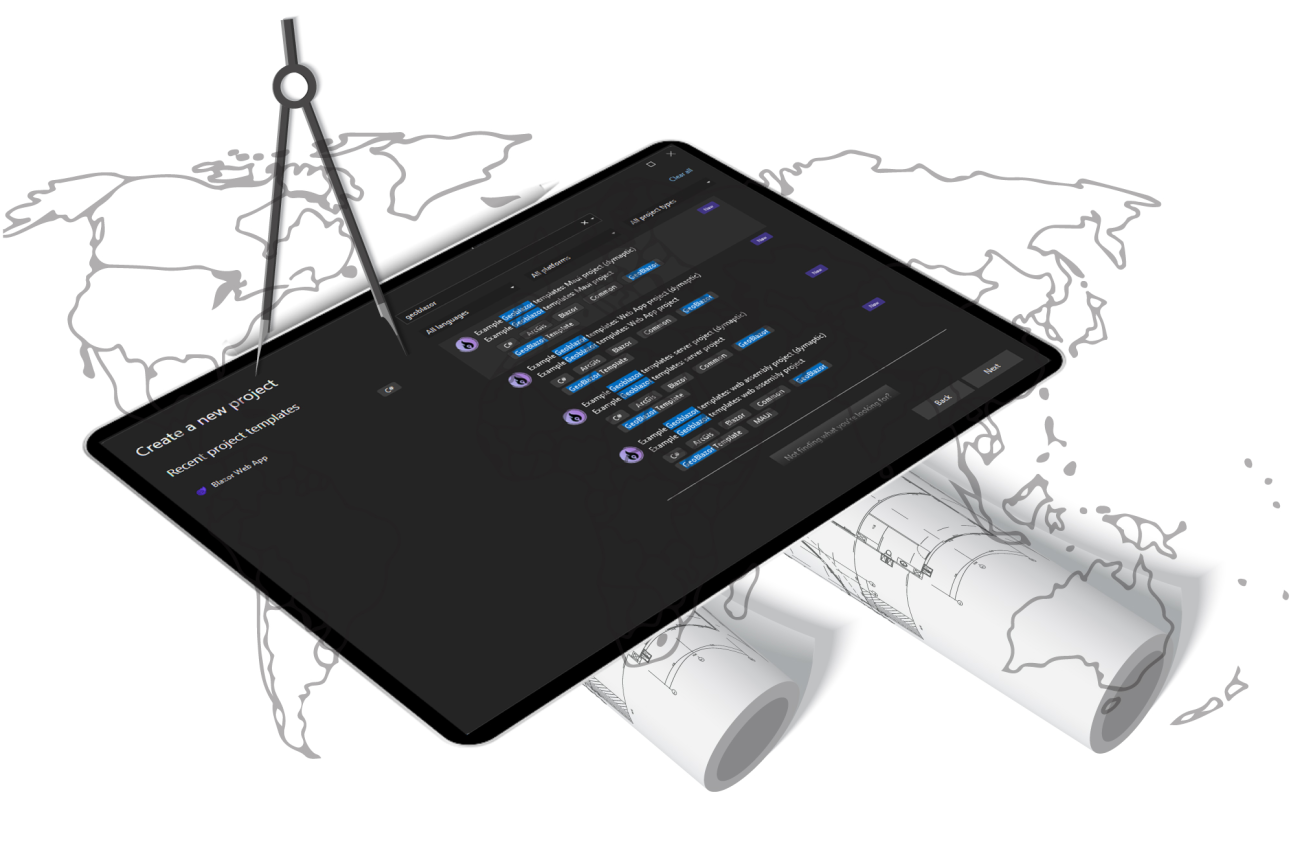
GeoBlazor is an easy-to-use solution for adding interactive maps to your Asp.NET Core Blazor applications. While we try to keep the application setup as simple as possible (see Getting Started), it still requires setting up a few lines in 4 different files. If you miss one of these steps, your map will not render.
Now, there's a new way to get started, using GeoBlazor Templates. With these templates, we have done a lot of the boilerplate setup for you, allowing you to get straight to implementing the mapping features you care about.
Installing the Templates
To get started, make sure you have .NET 8 installed, and open up a terminal application to run the following:
dotnet new install dymaptic.GeoBlazor.Templates
dotnet new install dymaptic.GeoBlazor.Templates
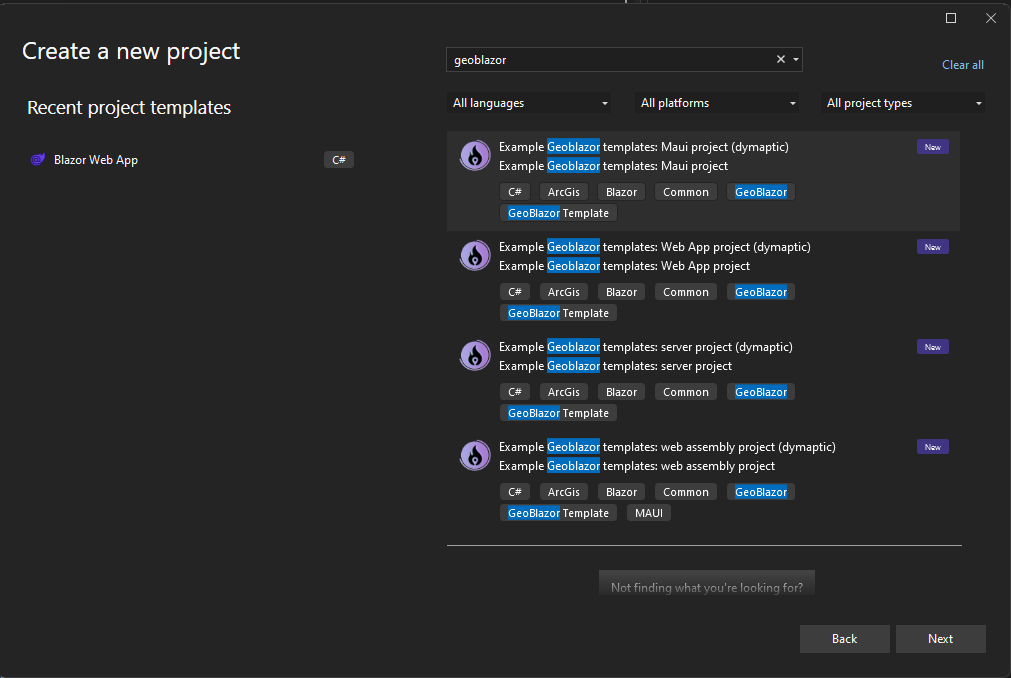
This installs the GeoBlazor templates to your computer. From there, you can use the command line or your IDE to create new GeoBlazor projects. In the screenshot below, notice that the templates appear in Visual Studio 2022.
Creating Projects with Templates
From the command line, one of the following commands will create a project:
Server-Side Blazor
dotnet new geoblazor-server -o <project name>
dotnet new geoblazor-server -o <project name>
Server-side app that connects to the browser via SignalR
Client-Side WebAssembly
dotnet new geoblazor-webassembly -o <project name>
dotnet new geoblazor-webassembly -o <project name>
Client-side WebAssembly app that runs in the browser
Blazor Hybrid with MAUI
dotnet new geoblazor-maui -o <project name>
dotnet new geoblazor-maui -o <project name>
Blazor Hybrid with .NET MAUI deployable to Windows, Mac, iOS, and Android
Blazor Web App (.NET 8+)
dotnet new geoblazor-webapp -o <project name>
dotnet new geoblazor-webapp -o <project name>
New .NET 8 Blazor Web App for mixed render modes
Getting Started with Your New Project
Each template comes with a README.md file with instructions on adding your ArcGIS API Key, which is the only step necessary to get started.
When running GeoBlazor for the first time, you will see a prompt in your console to register the application, which you can do at licensing.dymaptic.com/geoblazor-core. This registration includes a short survey that helps us better support our users.
Share Your Feedback
Let us know what you think of the new GeoBlazor templates! You can join the discussion on our Discord server, or email geoblazor@dymaptic.com.
Ready to start building with GeoBlazor?
- Get Started with GeoBlazor - Install the templates and start mapping in minutes
- Explore the Documentation - Comprehensive guides, samples, and API reference
- View Pricing - Free for development, affordable licensing for production
- Join the Community - Get help and share your projects on Discord