GeoBlazor allows .NET developers to create web apps using Esri's ArcGIS Maps SDK for JavaScript. With .NET 6 LTS and .NET 7 both reaching the end of support this year, projects targeting those framework versions will need to be updated to receive bug and security fixes. We wanted to walk through how to migrate a simple application to the latest .NET framework and GeoBlazor version, so we did just that, using a project that dymaptic CTO Christopher Moravec presented at the 2023 Esri Developer Summit.
Getting Started
We started with a Blazor WebAssembly project using dymaptic.GeoBlazor.Core version 2.0.0 in .NET 7 - a perfect candidate to update!
Updating framework versions is usually straightforward, but a project's packages/dependencies can have major updates that coincide with updates to the .NET version. GeoBlazor updated from 2.X to 3.X in March of 2024 and came with many new features and a few breaking changes to get those features into place. You can read the release notes here.
Updating an existing project that utilizes GeoBlazor 2.X is easy and can be combined with updating the latest .NET framework. In just a couple of hours, we were able to set up and run an existing project using .NET 9 and GeoBlazor 3.1.1.
Making the Updates
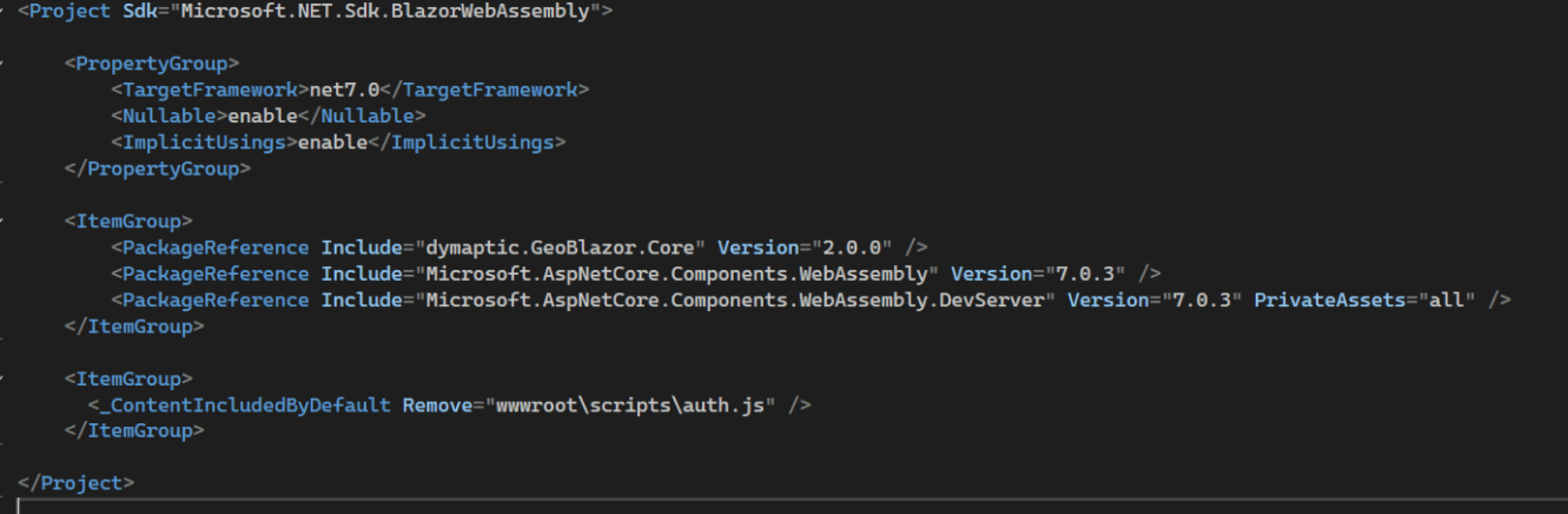
The project file that we are going to update
We first updated the TargetFramework to "net9.0", then used the NuGet package manager to auto-update everything to the latest version.
NOTE: There is a known issue with .NET 9 that drastically slows down the build time for projects using GeoBlazor (https://github.com/dotnet/aspnetcore/issues/59014). For now, we recommend sticking with .NET 8, but if you are using .NET 9, check out the beta releases for full support in the short-term.
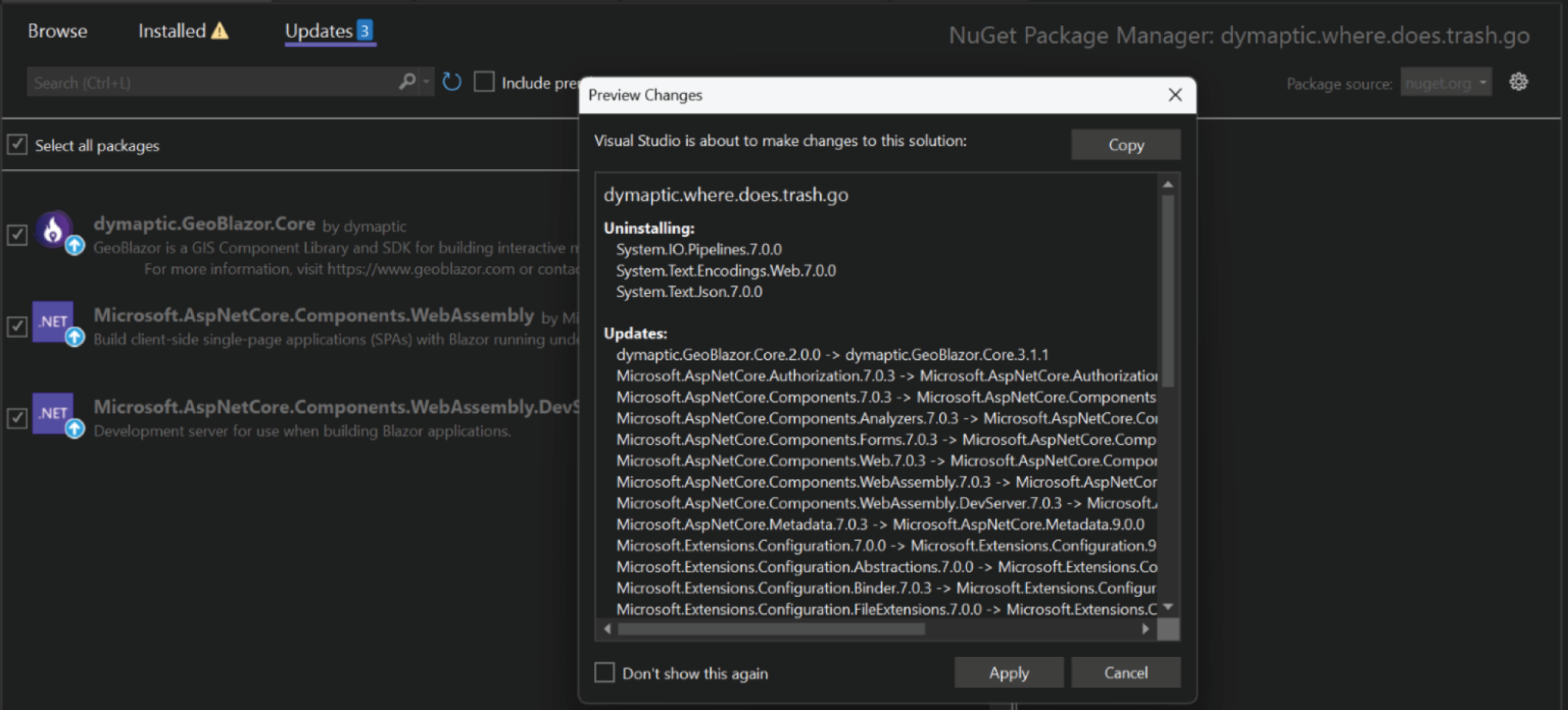
Using the Visual Studio Project Package Manager to update the project
This project used ArcGIS Enterprise User Authentication, which didn't exist when Christopher built the app (it was added in GeoBlazor 2.1.0 after the conference). We used the documentation to remove the unnecessary code and leverage the GeoBlazor AuthenticationManager class instead.
With that all squared away, we needed to update the application's ArcGIS authentication. The application was built with an ArcGIS Online API key, which still works with ArcGIS, but I want to use App Authentication instead.
To update this, we created a new Web Mapping Application in ArcGIS Online and replaced the API key in the application.

The Esri ArcGIS Online Content Page for managing API keys
GeoBlazor 3.1.1 is already set up to handle the change, so all we had to do was update the project's appsettings.json to replace the legacy API key with the new Client ID provided by ArcGIS. There is additional GeoBlazor documentation on Authentication Modes here.
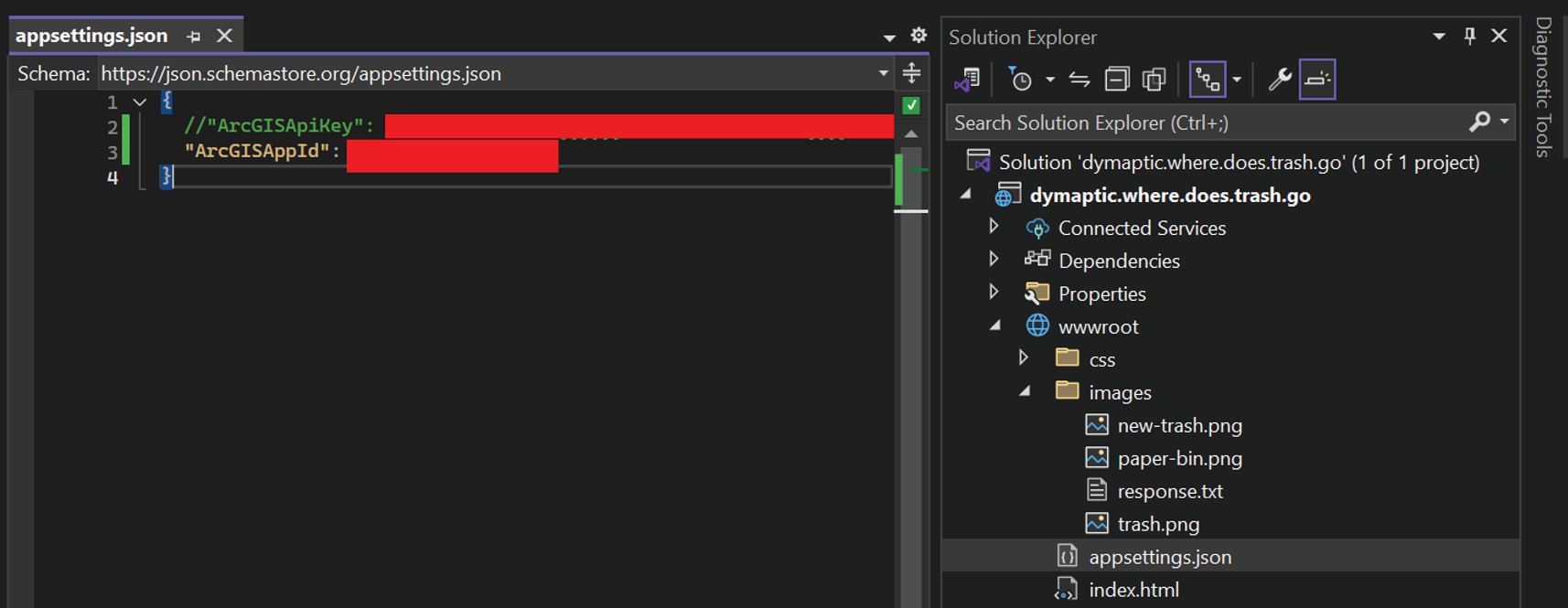
Updating the appsettings.json file with the new ArcGIS key
Remember that different project types (Blazor WebAssembly vs Blazor Server) using the GeoBlazor package may need to update the appsettings.json in various locations.
The next step was to update the call to AddGeoBlazor in the Program.cs file, which allows the GeoBlazor package to read the configuration file and access the API keys.
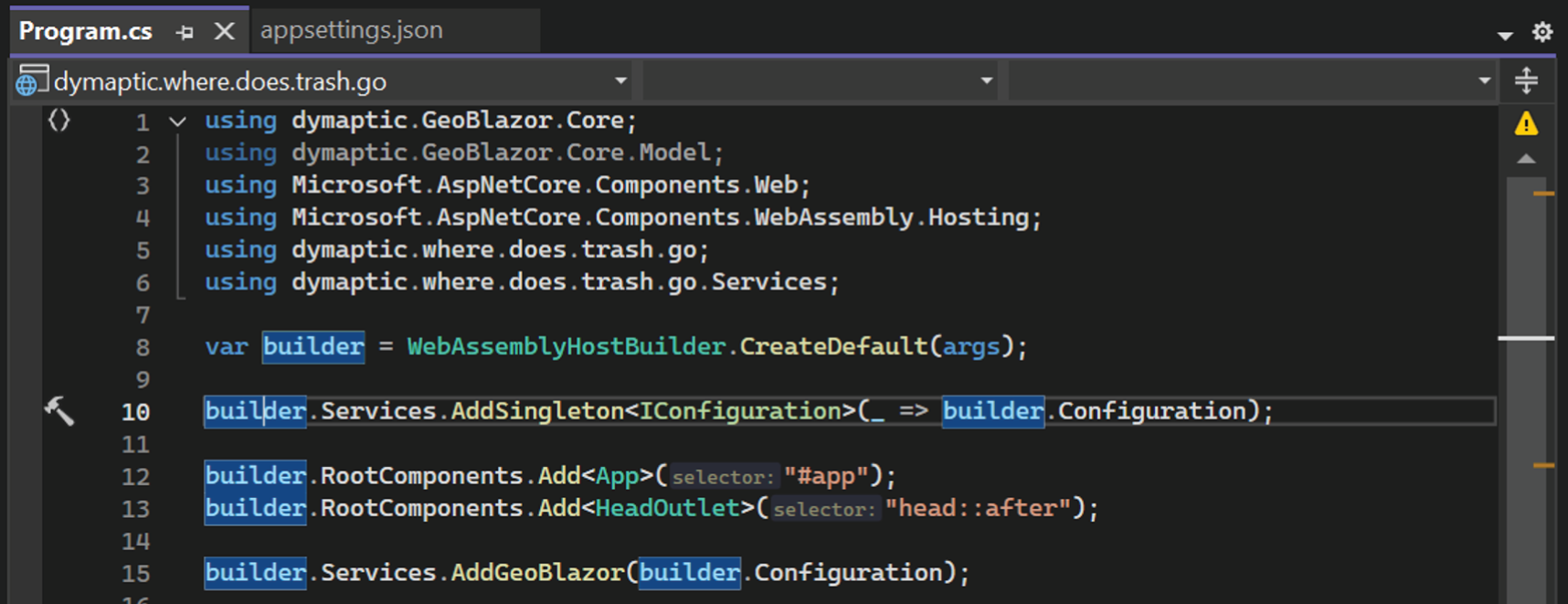
Updating the GeoBlazor declaration in the Program.cs file
The Result
With all the updates complete, we can run the application and get our map!
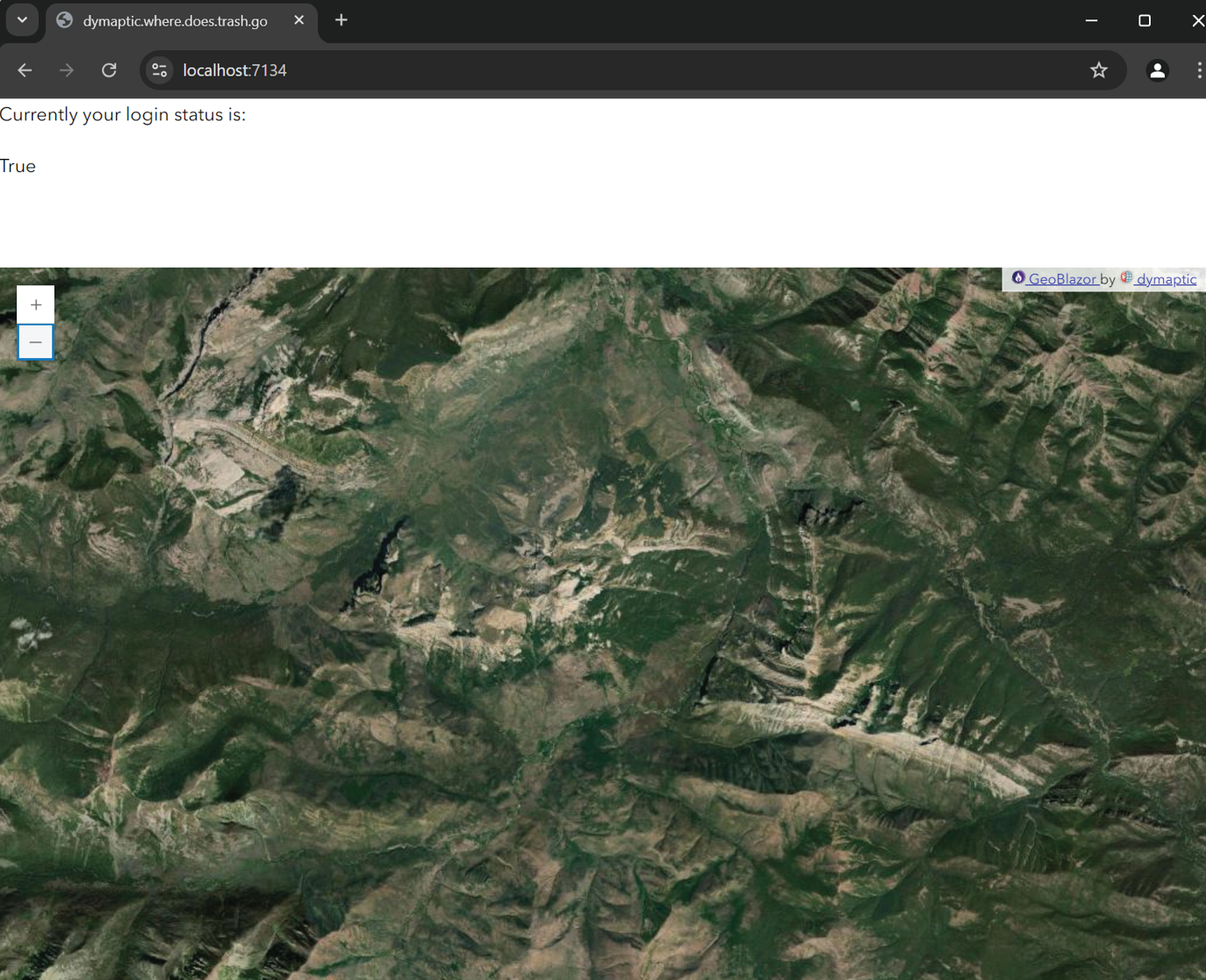
The working updated website
Migrating a simple application to the latest .NET and GeoBlazor is fairly straightforward, but it's even easier if the project is kept up to date as new releases occur.
The GeoBlazor Visual Studio templates are also an excellent resource for examining how new applications should be created and for determining what changes are required to migrate older projects.
We have fully running project templates you can install in Visual Studio to start with a fully configured project. If you want to see more code examples check out https://samples.geoblazor.com.
Thanks, and happy mapping!
Ready to update your GeoBlazor project?
- Install GeoBlazor Templates - Start with a fully configured project
- Read the Documentation - Comprehensive migration guides and API reference
- View Release Notes - See what's new in each version
- Explore Sample Applications - See GeoBlazor 3.X in action
- Join Our Discord - Get help with your migration